Showing posts with label SCM. Show all posts

How can Open Oracle Apps General Ledger , Inventory and Purchasing Modules Periods in Oracle Apps R12


How can Open Oracle Apps General Ledger Period in Oracle Apps R12

Or 

Step to Open Oracle Apps General Ledger Period in Oracle Apps R12


Note -: Whenever you do Receiving inventory transactions, you often get errors if your Inventory/ purchasing/ GL periods are not open.

Here is the navigation where you can setup the periods for your material receipts:

Go to

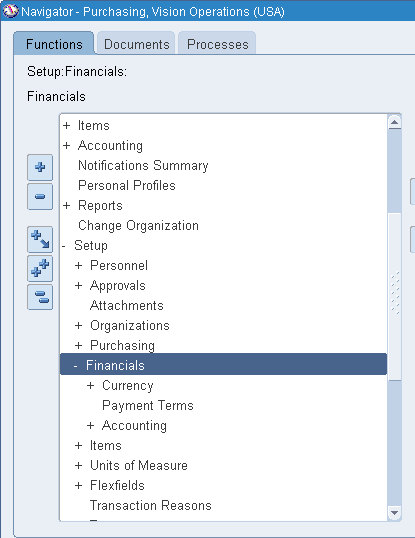
Setup > Financial > Accounting > Open and Close periods

-OR-

Setup > Open and Close periods


Click On Open/Close


 Select Ledger Name and Period Accordingly 


Click On Open Periods 


Choose Target Period 


Once Check the Concurrent Program Status .


Now Your's General Ledger Period Opened .Ensure that the  GL Period  has Status Open.


How can Open Oracle Apps Inventory Period in Oracle Apps R12

Or 


Step to Open Oracle Apps Inventory Period in Oracle Apps R12


Go to

Inventory > Accounting close cycle > Inventory Accounting Periods


Choose Respective Inventory Organization


Click on Change Status then OK


Now Your's Inventory Period Opened .


How can Open Oracle Apps Purchasing Period in Oracle Apps R12

Or 

Step to Open Oracle Apps Purchasing Period in Oracle Apps R12


Here is the navigation where you can setup the periods 

Go to

Setup > Financial > Accounting > Control Purchasing Period


Then


Choose Fiscal Year or Period Name accordingly 


Change Periods Status as "Open"


Save


Now Your's Purchasing Period Opened .Ensure that the  Purchasing Period  has Status Open


"How can Open Oracle Apps General Ledger , Inventory and Purchasing Modules Periods in Oracle Apps R12"


“A GUIDE FOR ORACLE E-BUSINESS SUITE” –A complete Solution and Learning platform For Oracle Apps R12/11i, Training, India Localization, Technical, P2P, O2C, Drop-shipment, AR/AP Cycle, Implementation, Bug or error in Oracle Apps R12/11i, Up-gradation, Support, Alert, Personalization, Discoverer management, OracleApps R12/11i Module, Finance, SCM, MRP, ASCP, WIP, BOM, FA, AP, AR, OM, INV, AOL, MOAC, TCA structure, Project Accounting, CM, Functional,Oracle DBA, ERP, Techno-functional, OAF, Oracle Apps Interview Question and Error in Oracle apps R12/11i. For More Information Visit on www.OracleAppsGuide.com Or Subscribe your email-id on OracleAppsGuide


Setup Step for ECO Cycle (Engineering Change Order) in Oracle Apps


Setup step for ECO Cycle (Engineering Change Order) in Oracle Apps


  • Defining ECO Types
  • Defining ECO Auto numbering
  • Defining ECO Priorities
  • Defining ECO Reasons
  • Defining ECO Approval Lists
  • Starting the Auto Implement Manager
  • Engineering Profile Options and Security Functions 


Defining Engineering Change Orders


  • Creating an ECO
  • Viewing ECO Approval Status
  • Rescheduling an ECO or Revised Items
  • Changing the ECO Status
  • Defining Implementation Costs
  • Defining an ECO Revision
  • Defining ECO Revised Items
  • Viewing ECO Schedule History
  • Defining Revised Components
  • Viewing Item Revisions
  • Assigning or Deleting Substitute Components
  • Assigning Reference Designators
  • Attaching Files to ECOs
  • Engineering Change Orders Field


ECO Statuses


  • ECO Revised Item Statuses
  • ECO Approval Statuses
  • Disposition Field


ECO Reports in Oracle Apps


  • Engineering Change Order Approval Lists Report
  • Engineering Change Order Detail Report
  • Engineering Change Order Priorities Report
  • Engineering Change Order Reasons Report
  • Engineering Change Order Schedule Report


“A GUIDE FOR ORACLE E-BUSINESS SUITE” –A complete Solution and Learning platform For Oracle Apps R12/11i, Training, India Localization, Technical, P2P, O2C, Drop-shipment, AR/AP Cycle, Implementation, Bug or error in Oracle Apps R12/11i, Up-gradation, Support, Alert, Personalization, Discoverer management, OracleApps R12/11i Module, Finance, SCM, MRP, ASCP, WIP, BOM, FA, AP, AR, OM, INV, AOL, MOAC, TCA structure, Project Accounting, CM, Functional,Oracle DBA, ERP, Techno-functional, OAF, Oracle Apps Interview Question and Error in Oracle apps R12/11i. For More Information Visit on www.OracleAppsGuide.com Or Subscribe your email-id on OracleAppsGuide

ECO Cycle (Engineering Change Order) in Oracle Apps


ECO Cycle (Engineering Change Order) in Oracle Apps


Step 1- Go to the Engineering Change Order Responsibility 


Step 2- Please Define the Engineering Change Order/Query 


Step 3- Now Click on Revision Item 


Step 4 -  Save the Form .


Step 5 - Click on Tools and Release ECO (Engineering Change Order) Accordingly . 


Note - You can Check by 


SELECT * FROM APPS.ENG_REVISED_ITEMS


Step 5 - : Now Implement ECO (Engineering Change Order)


Step 6- : Now Go to View > Request > Find the "Engineering Change Order" Program .


“A GUIDE FOR ORACLE E-BUSINESS SUITE” –A complete Solution and Learning platform For Oracle Apps R12/11i, Training, India Localization, Technical, P2P, O2C, Drop-shipment, AR/AP Cycle, Implementation, Bug or error in Oracle Apps R12/11i, Up-gradation, Support, Alert, Personalization, Discoverer management, OracleApps R12/11i Module, Finance, SCM, MRP, ASCP, WIP, BOM, FA, AP, AR, OM, INV, AOL, MOAC, TCA structure, Project Accounting, CM, Functional,Oracle DBA, ERP, Techno-functional, OAF, Oracle Apps Interview Question and Error in Oracle apps R12/11i. For More Information Visit on www.OracleAppsGuide.com Or Subscribe your email-id on OracleAppsGuide


Resolving Period Close Pending Transaction R12 or Inventory Closing Steps in Oracle Apps R12


Resolving Period Close Pending Transaction R12 (Doc ID 1069492.1)

APPLIED ON:-

Oracle Cost Management - Version 12.0.0 and later
Oracle Shipping Execution - Version 12.0.0 and later
Oracle Purchasing - Version 12.0.0 and later
Oracle Work in Process - Version 12.0.0 and later
Oracle Inventory Management - Version 12.0.0 and later

PURPOSE:-

Troubleshooting Pending Transactions

TROUBLESHOOTING STEPS:-


4-: Pending WIP Costing transactions

5-: Pending WSM interface

6-: Pending LCM Interface Transactions


Resolution Recommended Transactions


1-: Pending Receiving Transactions

2-: Pending Material Transactions

3-: Pending Shop Floor Move

4-: UNPROCESSED SHIPPING TRANSACTIONS


Conclusion:

The key steps to resolving pending transactions are:

-Locate the transactions
-Find the error message to determine what is preventing the transactions from processing.
-Resolve the error
-Resubmit the pending record.

If transactions are pending but not in error the transaction will need to be resubmitted via an SQL statement.


For More Information Visit on www.OracleAppsGuide.comOr Subscribe your email-id on OracleAppsGuide

Ref -: Oracle Doc (Doc ID 1069492.1)


Disclaimer -  In this Post All Contents taken from Oracle Knowledge and SR experience here we arraigned and make understandable according to Developer . 

UNPROCESSED SHIPPING TRANSACTIONS(Resolving Period Close Pending Transaction R12 or Inventory Closing Steps in Oracle Apps R12)


UNPROCESSED SHIPPING TRANSACTIONS


To resolve unprocessed shipping transactions, you need to determine and fix the shipping transactions that are in a status of shipped, BUT not interface to Order Management or Inventory, in the WSH_DELIVERY_DETAILS table. Details of the Shipping transactions in a status of shipped can be viewed through the application by navigating to the Transaction screen through Order Management and quarrying on the status 'Shipped' and the Date of period:


Order Management > Shipping > Transactions


The Shipping Transactions window provides a consolidated workbench for three major shipping functions: planning, pick releasing, and ship confirming. It enables you to plan and manage trips, stops, deliveries, delivery lines, and LPNs. There are four tabs to select they type of information: Trips, Stops, Contents by Delivery, Contents by Line/Lpn.


Transactions that are in a in a status of 'Shipped' have been shipped confirmed but have not yet been interfaced to Oracle Inventory. These must be processed and resolved before the period is closed. The concurrent process "Order Management Interface" and the concurrent process "Inventory Interface" populate Inventory Interface and Order Management Interface and upon completing successfully the status of the line changes to "Invoice Eligible". These concurrent processes can be submitted through the applications by navigating to:


Order Management > Shipping > Interface > Run

Run the Order Management Interface-SRS first then the Inventory Interface-SRS. These concurrent processes can be submitted by Trip Stop. The Trip Stop of the pending shipping transaction can be found in the Shipping Transactions window under the Stops tab in the Trip column. Reviewing the log file will supply an error message if the concurrent process does not complete successfully.


For More Information Visit on www.OracleAppsGuide.comOr Subscribe your email-id on OracleAppsGuide

Ref -: Oracle Doc (Doc ID 1069492.1)


Pending Shop Floor Move(Resolving Period Close Pending Transaction R12 or Inventory Closing Steps in Oracle Apps R12)


Pending Shop Floor Move


Resolving unprocessed Move Transactions is a process of determining and fixing what is preventing a record from being processed through the WIP_MOVE_TXN_INTERFACE table. Details of pending move transactions can be viewed through the applications by navigating to the pending move transactions form:


WIP > Move Transactions > Pending Move Transactions


Through the Pending Move Transactions window you can view, update, delete, and resubmit Move transaction records that have failed validation and remain in the Open Move Transaction Interface table (WIP_MOVE_TXN_INTERFACE). You can also resubmit transactions whose concurrent process has failed and have a processing phase of Complete and process status of Error. You can view error messages associated with failed records. Error messages can assist you in updating failed records before resubmission.


There are seven tabs to select information on the move transaction; Processing, Source, Concurrent Request, Job or Schedule Name, Operations, Transactions, Comments and Scrap Account which provide detailed information to help you resolve pending move transactions.


Fields Common to all Tabs:

Resubmit(check Box), When Checked and saved the erred transaction line will be resubmitted, if the line is not in error it can not be resubmitted using the Submit check box but will have to be resubmitted through a sqlplus script.
Transactions Id, Transaction Identifier
Errors(button), The error details of an erred transactions can be viewed by selecting the transaction and then clicking on the Errors button. Column indicates the name of the column in the wip move transaction interface that failed validation. Message indicates why the transactions failed.

Fields in Source Tab:

Source Code,Code of the shop floor control system that generated the transaction record (null if created by Oracle Work in Process)
Source Line, Identifier used by source shop floor control system (null if created by Oracle Work in Process)
Created By, User name of the person who created the record

Fields in Concurrent Request:

Request ID,Line item's request ID
Phase,Transaction processing phase
Status,Transaction processing status
Message, Concurrent Message

Fields in Job or Schedule Name:

Organization, Organization code
Job or Schedule Name, WIP job or repetitive assembly name
Line, Line name
Assembly, Inventory item Identifier for the assembly the job or schedule creates

Fields in Operations Tab:

From Operation, Operation the move is from
Seq, From operation sequence number
Department, From department code
Step, From intra-operation step

To Operation, Operation the move is to
Seq, To operation sequence number
Department,To department code
Step,To intra-operation step

Fields in Transaction Tab:

UOM, Unit of measure used in transaction
Quantity, Transaction quantity (between operations)
Overcompletion Quantity, Overcompletion quantity specified in the transaction UOM
Date, Transaction date
Type,Transaction type

Fields in Comments and Scrap Account Tab:

Reason,Standard transaction reason name
Reference,Transaction reference descriptive text
Scrap Account,General Ledger account charged when material is scrapped


Erred transactions will have the Transactions ID and Group ID populated and the Status will be 'Error'. Pending transactions will have the Transactions ID and Group Id fields blank and the Status will be 'Pending'.


Erred transactions will have the Transactions ID and Group ID populated and the Status will be 'Error'. Pending transactions will have the Transactions ID and Group Id fields blank and the Status will be 'Pending'.


Resubmitting Failed Move Transactions:


In the Pending Move Transactions window, either check the transaction's Resubmit check box to resubmit one record or chose Select All from the Special Menu. Now save your work. The records can also be resubmitted using the following SQL statement:
Update WIP_MOVE_TXN_INTERFACE

Set GROP_ID = NULL,

TRANSACTIONS_ID = NULL,

PROCESS_STATUS = 1
Where TRANSACTION_ID = <&TRANSACTION_ID>;


When you resubmit a record, the system nulls the Transactions ID, Group ID and changes the processing status to 'Pending'.


Deleting Pending Move Transactions Records:

To delete pending move transactions, in the Pending Move Transactions window, select the transaction choose Delete from the Edit Menu. You can delete failed records that have a processing status of Error regardless of their processing phase. When you delete transaction records, their corresponding error messages are also deleted. 

Records in a BackFlush setup phase;  If there is a failure in the Backflush setup phase, there will be a record in WIP_MOVE_TXN_INTERFACE and a corresponding record in WIP_MOVE_TRANSACTIONS. Records left in WIP_MOVE_TXN_INTERFACE with process_phase 3 should not be deleted. Backflush processing will never happen if these records are deleted, leading to data corruption.


For More Information Visit on www.OracleAppsGuide.com Or Subscribe your email-id on OracleAppsGuide

Ref -: Oracle Doc (Doc ID 1069492.1)