Showing posts with label P2P. Show all posts

Query to find - Is an employer also a buyer or not in oracle Apps or How can check that employee is a buyer


Query to find Is an employee also a buyer or not In Oracle Apps R12 ?


Query -


SELECT pa.agent_id, papf.person_id, papf.employee_number, papf.email_address,
       pa.category_id, pa.location_id, papf.effective_start_date,
       papf.effective_end_date
  FROM po_agents pa, per_all_people_f papf, hr_all_organization_units haou
 WHERE pa.agent_id = papf.person_id
   AND papf.business_group_id = haou.business_group_id
   AND TRUNC (SYSDATE) BETWEEN papf.effective_start_date
                           AND papf.effective_end_date
--AND    email_address = 'rdamanho@redhat.com'
--AND PAPF.EFFECTIVE_END_DATE > SYSDATE
--AND HAOU.BUSINESS_GROUP_ID = 100


“A GUIDE FOR ORACLE E-BUSINESS SUITE” –A complete Solution and Learning platform For Oracle Apps R12/11i, Training, India Localization, Technical, P2P, O2C, Drop-shipment, AR/AP Cycle, Implementation, Bug or error in Oracle Apps R12/11i, Up-gradation, Support, Alert, Personalization, Discoverer management, OracleApps R12/11i Module, Finance, SCM, MRP, ASCP, WIP, BOM, FA, AP, AR, OM, INV, AOL, MOAC, TCA structure, Project Accounting, CM, Functional,Oracle DBA, ERP, Techno-functional, OAF, Oracle Apps Interview Question and Error in Oracle apps R12/11i. For More Information Visit on www.OracleAppsGuide.com Or Subscribe your email-id on OracleAppsGuide


How can be add month in calendar or defining new fiscal year in oracle apps R12


How can add month in calendar or defining new fiscal year in oracle apps R12 

Or

How can add an Adjustment Period in Calendar 


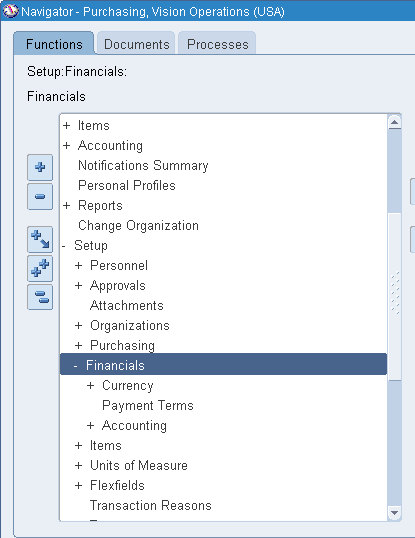
Go to General Ledger ,Vision Operation (USA) < Setup 


Then Setup < Financials < Calendars < Accounting


Now Query (F11) "Accounting"  then press Ctrl + F11 


Now Go to File < New and add a new line Accordingly .


Fill all mandatory field as required .


Now Save 


Finally, Your's Month add in Calendar .


Note -:  Use the following Query to check the status of the Periods Details accordingly :


select a.period_name,
       a.period_num,
       a.gl_status,
       b.po_status,
       c.ap_status
from
   (select period_name, period_num, 
    decode(closing_status,'O','Open',
                          'C','Closed',
                          'F','Future',
                          'N','Never',
           closing_status) gl_status
    from gl_period_statuses
    where application_id = 101
    and start_date >= '01-JAN-98
    and end_date < '01-JAN-99'
    and set_of_books_id = &&set_of_books_id) a,
   (select period_name, 
    decode(closing_status,'O','Open',
                          'C','Closed',
                          'F','Future',
                          'N','Never',
           closing_status) po_status
    from gl_period_statuses
    where application_id = 201
    and start_date >= '01-JAN-15'
    and end_date < '01-JAN-16'
    and set_of_books_id = &&set_of_books_id) b,
   (select period_name,
    decode(closing_status,'O','Open',
                          'C','Closed',
                          'F','Future',
                          'N','Never',
           closing_status) ap_status
    from gl_period_statuses
    where application_id = 200
    and start_date >= '01-JAN-15'
    and end_date < '01-JAN-16'
    and set_of_books_id = &&set_of_books_id) c
where a.period_name = b.period_name
and   a.period_name = c.period_name
order by a.period_num


“A GUIDE FOR ORACLE E-BUSINESS SUITE” –A complete Solution and Learning platform For Oracle Apps R12/11i, Training, India Localization, Technical, P2P, O2C, Drop-shipment, AR/AP Cycle, Implementation, Bug or error in Oracle Apps R12/11i, Up-gradation, Support, Alert, Personalization, Discoverer management, OracleApps R12/11i Module, Finance, SCM, MRP, ASCP, WIP, BOM, FA, AP, AR, OM, INV, AOL, MOAC, TCA structure, Project Accounting, CM, Functional,Oracle DBA, ERP, Techno-functional, OAF, Oracle Apps Interview Question and Error in Oracle apps R12/11i. For More Information Visit on www.OracleAppsGuide.com Or Subscribe your email-id on OracleAppsGuide .


How can Open Oracle Apps General Ledger , Inventory and Purchasing Modules Periods in Oracle Apps R12


How can Open Oracle Apps General Ledger Period in Oracle Apps R12

Or 

Step to Open Oracle Apps General Ledger Period in Oracle Apps R12


Note -: Whenever you do Receiving inventory transactions, you often get errors if your Inventory/ purchasing/ GL periods are not open.

Here is the navigation where you can setup the periods for your material receipts:

Go to

Setup > Financial > Accounting > Open and Close periods

-OR-

Setup > Open and Close periods


Click On Open/Close


 Select Ledger Name and Period Accordingly 


Click On Open Periods 


Choose Target Period 


Once Check the Concurrent Program Status .


Now Your's General Ledger Period Opened .Ensure that the  GL Period  has Status Open.


How can Open Oracle Apps Inventory Period in Oracle Apps R12

Or 


Step to Open Oracle Apps Inventory Period in Oracle Apps R12


Go to

Inventory > Accounting close cycle > Inventory Accounting Periods


Choose Respective Inventory Organization


Click on Change Status then OK


Now Your's Inventory Period Opened .


How can Open Oracle Apps Purchasing Period in Oracle Apps R12

Or 

Step to Open Oracle Apps Purchasing Period in Oracle Apps R12


Here is the navigation where you can setup the periods 

Go to

Setup > Financial > Accounting > Control Purchasing Period


Then


Choose Fiscal Year or Period Name accordingly 


Change Periods Status as "Open"


Save


Now Your's Purchasing Period Opened .Ensure that the  Purchasing Period  has Status Open


"How can Open Oracle Apps General Ledger , Inventory and Purchasing Modules Periods in Oracle Apps R12"


“A GUIDE FOR ORACLE E-BUSINESS SUITE” –A complete Solution and Learning platform For Oracle Apps R12/11i, Training, India Localization, Technical, P2P, O2C, Drop-shipment, AR/AP Cycle, Implementation, Bug or error in Oracle Apps R12/11i, Up-gradation, Support, Alert, Personalization, Discoverer management, OracleApps R12/11i Module, Finance, SCM, MRP, ASCP, WIP, BOM, FA, AP, AR, OM, INV, AOL, MOAC, TCA structure, Project Accounting, CM, Functional,Oracle DBA, ERP, Techno-functional, OAF, Oracle Apps Interview Question and Error in Oracle apps R12/11i. For More Information Visit on www.OracleAppsGuide.com Or Subscribe your email-id on OracleAppsGuide


Error "You have exceeded the transaction quantity". Precision Restriction for Quantity Field Up To 6 Decimal Places Performing Lot Receipts (Doc ID 464983.1)


Error "You have exceeded the transaction quantity". 


Applies to: 

Information in this document applies to any platform.

FORM:RCVRCERC.FMB - Enter Receipts GUI

FORM:RCVTXERT.FMB - Enter Receiving Transactions GUI

FORM:RCVTXERE.FMB - Enter Returns GUI

FORM:RCVTXECO.FMB - Enter Corrections GUI

"You have exceeded the transaction quantity"


Symptoms:

"You have exceeded the transaction quantity"

Note: Internal error message may indicate this message:
INV_QUANTITY_TOO_BIG

Steps:
  1. Go to Receiving Screen
  2. Enter the qty like 7200.00000489 (6 digits restriction makes it 7200.000005)
  3. Go to Lot/Serial form
  4. Enter lot number and qty as 7200.00001 (which was rounded to 5 digits)
  5. Message "you have exceeded the transaction quantity "
Cause Can Be-:


a) Restriction of precision support up to 6 decimal places were added for the quantity field 

b) Comparing the transaction qty entered in receiving forms and the lot quantity entered in lot-entry form after rounding to 5 decimal precision.

Quantity Precision support from now on will be as follows:
Receiving supports unlimited precision in Receiving forms.
Core Inventory's lot entry block still supports only 5 decimal precision. 
Important: The revised Quantity Precision support affects any quantities entered in all of the receiving forms (not just LOT based items).

Solution:

To implement the solution, please execute the following steps:

1. Download and review the readme for Patch 5880504 

2. Apply Patch 5880504 on a non-Production instance

3. Confirm the following file version:
     $AU_TOP/resource/RCVRCERL.plx  115.157.11510.45
     $AU_TOP/resource/RCVTXECO.plx  115.67.11510.20
     $AU_TOP/resource/RCVTXERT.plx  115.110.11510.22
     $PO_TOp/forms/US/RCVTXERE.fmb  115.79.11510.9
   You can use the commands like the following:
    strings -a $AU_TOP/resource/RCVRCERL.plx | grep 'Header:'

4. Retest the issue

5. If the issue is resolved, migrate the solution as appropriate to other instances


References:

BUG:6000073 - RECEIVING, INVENTORY AND PO SHOULD ALL SUPPORT 15 DECIMAL PRECISION
BUG:7626008 - DECIMAL POSITIONS NOT CONSISTENT ON RCV FORMS; CANNOT RETURN SMALL QTY


BUG:5880504 - ONDEMAND: OUT TO 9-10 DECIMAL PLACES, RECEIVING TRANSACTIONS ROUNDING ONLY TO 5


Note- All Reference Taken from Oracle Forum and manipulate then to make better understandable for Oracle Apps Technical and Oracle Apps Functional Developer .


For More Information Visit on www.OracleAppsGuide.comOr Subscribe your email-id on OracleAppsGuide. For live issue discussion, Solution and Error in Oracle Apps R12 and in Oracle Apps 11I ;Please visit on Oracle Apps Guide.

Resolving Period Close Pending Transaction R12 or Inventory Closing Steps in Oracle Apps R12


Resolving Period Close Pending Transaction R12 (Doc ID 1069492.1)

APPLIED ON:-

Oracle Cost Management - Version 12.0.0 and later
Oracle Shipping Execution - Version 12.0.0 and later
Oracle Purchasing - Version 12.0.0 and later
Oracle Work in Process - Version 12.0.0 and later
Oracle Inventory Management - Version 12.0.0 and later

PURPOSE:-

Troubleshooting Pending Transactions

TROUBLESHOOTING STEPS:-


4-: Pending WIP Costing transactions

5-: Pending WSM interface

6-: Pending LCM Interface Transactions


Resolution Recommended Transactions


1-: Pending Receiving Transactions

2-: Pending Material Transactions

3-: Pending Shop Floor Move

4-: UNPROCESSED SHIPPING TRANSACTIONS


Conclusion:

The key steps to resolving pending transactions are:

-Locate the transactions
-Find the error message to determine what is preventing the transactions from processing.
-Resolve the error
-Resubmit the pending record.

If transactions are pending but not in error the transaction will need to be resubmitted via an SQL statement.


For More Information Visit on www.OracleAppsGuide.comOr Subscribe your email-id on OracleAppsGuide

Ref -: Oracle Doc (Doc ID 1069492.1)


Disclaimer -  In this Post All Contents taken from Oracle Knowledge and SR experience here we arraigned and make understandable according to Developer . 

UNPROCESSED SHIPPING TRANSACTIONS(Resolving Period Close Pending Transaction R12 or Inventory Closing Steps in Oracle Apps R12)


UNPROCESSED SHIPPING TRANSACTIONS


To resolve unprocessed shipping transactions, you need to determine and fix the shipping transactions that are in a status of shipped, BUT not interface to Order Management or Inventory, in the WSH_DELIVERY_DETAILS table. Details of the Shipping transactions in a status of shipped can be viewed through the application by navigating to the Transaction screen through Order Management and quarrying on the status 'Shipped' and the Date of period:


Order Management > Shipping > Transactions


The Shipping Transactions window provides a consolidated workbench for three major shipping functions: planning, pick releasing, and ship confirming. It enables you to plan and manage trips, stops, deliveries, delivery lines, and LPNs. There are four tabs to select they type of information: Trips, Stops, Contents by Delivery, Contents by Line/Lpn.


Transactions that are in a in a status of 'Shipped' have been shipped confirmed but have not yet been interfaced to Oracle Inventory. These must be processed and resolved before the period is closed. The concurrent process "Order Management Interface" and the concurrent process "Inventory Interface" populate Inventory Interface and Order Management Interface and upon completing successfully the status of the line changes to "Invoice Eligible". These concurrent processes can be submitted through the applications by navigating to:


Order Management > Shipping > Interface > Run

Run the Order Management Interface-SRS first then the Inventory Interface-SRS. These concurrent processes can be submitted by Trip Stop. The Trip Stop of the pending shipping transaction can be found in the Shipping Transactions window under the Stops tab in the Trip column. Reviewing the log file will supply an error message if the concurrent process does not complete successfully.


For More Information Visit on www.OracleAppsGuide.comOr Subscribe your email-id on OracleAppsGuide

Ref -: Oracle Doc (Doc ID 1069492.1)