Showing posts with label SCM. Show all posts

How can Open Oracle Apps General Ledger , Inventory and Purchasing Modules Periods in Oracle Apps R12


How can Open Oracle Apps General Ledger Period in Oracle Apps R12

Or 

Step to Open Oracle Apps General Ledger Period in Oracle Apps R12


Note -: Whenever you do Receiving inventory transactions, you often get errors if your Inventory/ purchasing/ GL periods are not open.

Here is the navigation where you can setup the periods for your material receipts:

Go to

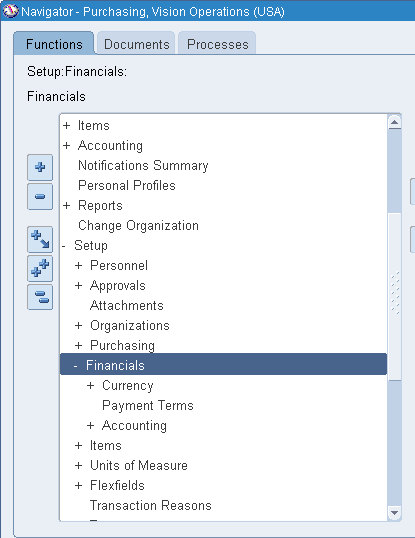
Setup > Financial > Accounting > Open and Close periods

-OR-

Setup > Open and Close periods


Click On Open/Close


 Select Ledger Name and Period Accordingly 


Click On Open Periods 


Choose Target Period 


Once Check the Concurrent Program Status .


Now Your's General Ledger Period Opened .Ensure that the  GL Period  has Status Open.


How can Open Oracle Apps Inventory Period in Oracle Apps R12

Or 


Step to Open Oracle Apps Inventory Period in Oracle Apps R12


Go to

Inventory > Accounting close cycle > Inventory Accounting Periods


Choose Respective Inventory Organization


Click on Change Status then OK


Now Your's Inventory Period Opened .


How can Open Oracle Apps Purchasing Period in Oracle Apps R12

Or 

Step to Open Oracle Apps Purchasing Period in Oracle Apps R12


Here is the navigation where you can setup the periods 

Go to

Setup > Financial > Accounting > Control Purchasing Period


Then


Choose Fiscal Year or Period Name accordingly 


Change Periods Status as "Open"


Save


Now Your's Purchasing Period Opened .Ensure that the  Purchasing Period  has Status Open


"How can Open Oracle Apps General Ledger , Inventory and Purchasing Modules Periods in Oracle Apps R12"


“A GUIDE FOR ORACLE E-BUSINESS SUITE” –A complete Solution and Learning platform For Oracle Apps R12/11i, Training, India Localization, Technical, P2P, O2C, Drop-shipment, AR/AP Cycle, Implementation, Bug or error in Oracle Apps R12/11i, Up-gradation, Support, Alert, Personalization, Discoverer management, OracleApps R12/11i Module, Finance, SCM, MRP, ASCP, WIP, BOM, FA, AP, AR, OM, INV, AOL, MOAC, TCA structure, Project Accounting, CM, Functional,Oracle DBA, ERP, Techno-functional, OAF, Oracle Apps Interview Question and Error in Oracle apps R12/11i. For More Information Visit on www.OracleAppsGuide.com Or Subscribe your email-id on OracleAppsGuide


Setup Step for ECO Cycle (Engineering Change Order) in Oracle Apps


Setup step for ECO Cycle (Engineering Change Order) in Oracle Apps


  • Defining ECO Types
  • Defining ECO Auto numbering
  • Defining ECO Priorities
  • Defining ECO Reasons
  • Defining ECO Approval Lists
  • Starting the Auto Implement Manager
  • Engineering Profile Options and Security Functions 


Defining Engineering Change Orders


  • Creating an ECO
  • Viewing ECO Approval Status
  • Rescheduling an ECO or Revised Items
  • Changing the ECO Status
  • Defining Implementation Costs
  • Defining an ECO Revision
  • Defining ECO Revised Items
  • Viewing ECO Schedule History
  • Defining Revised Components
  • Viewing Item Revisions
  • Assigning or Deleting Substitute Components
  • Assigning Reference Designators
  • Attaching Files to ECOs
  • Engineering Change Orders Field


ECO Statuses


  • ECO Revised Item Statuses
  • ECO Approval Statuses
  • Disposition Field


ECO Reports in Oracle Apps


  • Engineering Change Order Approval Lists Report
  • Engineering Change Order Detail Report
  • Engineering Change Order Priorities Report
  • Engineering Change Order Reasons Report
  • Engineering Change Order Schedule Report


“A GUIDE FOR ORACLE E-BUSINESS SUITE” –A complete Solution and Learning platform For Oracle Apps R12/11i, Training, India Localization, Technical, P2P, O2C, Drop-shipment, AR/AP Cycle, Implementation, Bug or error in Oracle Apps R12/11i, Up-gradation, Support, Alert, Personalization, Discoverer management, OracleApps R12/11i Module, Finance, SCM, MRP, ASCP, WIP, BOM, FA, AP, AR, OM, INV, AOL, MOAC, TCA structure, Project Accounting, CM, Functional,Oracle DBA, ERP, Techno-functional, OAF, Oracle Apps Interview Question and Error in Oracle apps R12/11i. For More Information Visit on www.OracleAppsGuide.com Or Subscribe your email-id on OracleAppsGuide

ECO Cycle (Engineering Change Order) in Oracle Apps


ECO Cycle (Engineering Change Order) in Oracle Apps


Step 1- Go to the Engineering Change Order Responsibility 


Step 2- Please Define the Engineering Change Order/Query 


Step 3- Now Click on Revision Item 


Step 4 -  Save the Form .


Step 5 - Click on Tools and Release ECO (Engineering Change Order) Accordingly . 


Note - You can Check by 


SELECT * FROM APPS.ENG_REVISED_ITEMS


Step 5 - : Now Implement ECO (Engineering Change Order)


Step 6- : Now Go to View > Request > Find the "Engineering Change Order" Program .


“A GUIDE FOR ORACLE E-BUSINESS SUITE” –A complete Solution and Learning platform For Oracle Apps R12/11i, Training, India Localization, Technical, P2P, O2C, Drop-shipment, AR/AP Cycle, Implementation, Bug or error in Oracle Apps R12/11i, Up-gradation, Support, Alert, Personalization, Discoverer management, OracleApps R12/11i Module, Finance, SCM, MRP, ASCP, WIP, BOM, FA, AP, AR, OM, INV, AOL, MOAC, TCA structure, Project Accounting, CM, Functional,Oracle DBA, ERP, Techno-functional, OAF, Oracle Apps Interview Question and Error in Oracle apps R12/11i. For More Information Visit on www.OracleAppsGuide.com Or Subscribe your email-id on OracleAppsGuide


Resolving Period Close Pending Transaction R12 or Inventory Closing Steps in Oracle Apps R12


Resolving Period Close Pending Transaction R12 (Doc ID 1069492.1)

APPLIED ON:-

Oracle Cost Management - Version 12.0.0 and later
Oracle Shipping Execution - Version 12.0.0 and later
Oracle Purchasing - Version 12.0.0 and later
Oracle Work in Process - Version 12.0.0 and later
Oracle Inventory Management - Version 12.0.0 and later

PURPOSE:-

Troubleshooting Pending Transactions

TROUBLESHOOTING STEPS:-


4-: Pending WIP Costing transactions

5-: Pending WSM interface

6-: Pending LCM Interface Transactions


Resolution Recommended Transactions


1-: Pending Receiving Transactions

2-: Pending Material Transactions

3-: Pending Shop Floor Move

4-: UNPROCESSED SHIPPING TRANSACTIONS


Conclusion:

The key steps to resolving pending transactions are:

-Locate the transactions
-Find the error message to determine what is preventing the transactions from processing.
-Resolve the error
-Resubmit the pending record.

If transactions are pending but not in error the transaction will need to be resubmitted via an SQL statement.


For More Information Visit on www.OracleAppsGuide.comOr Subscribe your email-id on OracleAppsGuide

Ref -: Oracle Doc (Doc ID 1069492.1)


Disclaimer -  In this Post All Contents taken from Oracle Knowledge and SR experience here we arraigned and make understandable according to Developer . 

UNPROCESSED SHIPPING TRANSACTIONS(Resolving Period Close Pending Transaction R12 or Inventory Closing Steps in Oracle Apps R12)


UNPROCESSED SHIPPING TRANSACTIONS


To resolve unprocessed shipping transactions, you need to determine and fix the shipping transactions that are in a status of shipped, BUT not interface to Order Management or Inventory, in the WSH_DELIVERY_DETAILS table. Details of the Shipping transactions in a status of shipped can be viewed through the application by navigating to the Transaction screen through Order Management and quarrying on the status 'Shipped' and the Date of period:


Order Management > Shipping > Transactions


The Shipping Transactions window provides a consolidated workbench for three major shipping functions: planning, pick releasing, and ship confirming. It enables you to plan and manage trips, stops, deliveries, delivery lines, and LPNs. There are four tabs to select they type of information: Trips, Stops, Contents by Delivery, Contents by Line/Lpn.


Transactions that are in a in a status of 'Shipped' have been shipped confirmed but have not yet been interfaced to Oracle Inventory. These must be processed and resolved before the period is closed. The concurrent process "Order Management Interface" and the concurrent process "Inventory Interface" populate Inventory Interface and Order Management Interface and upon completing successfully the status of the line changes to "Invoice Eligible". These concurrent processes can be submitted through the applications by navigating to:


Order Management > Shipping > Interface > Run

Run the Order Management Interface-SRS first then the Inventory Interface-SRS. These concurrent processes can be submitted by Trip Stop. The Trip Stop of the pending shipping transaction can be found in the Shipping Transactions window under the Stops tab in the Trip column. Reviewing the log file will supply an error message if the concurrent process does not complete successfully.


For More Information Visit on www.OracleAppsGuide.comOr Subscribe your email-id on OracleAppsGuide

Ref -: Oracle Doc (Doc ID 1069492.1)


Pending Shop Floor Move(Resolving Period Close Pending Transaction R12 or Inventory Closing Steps in Oracle Apps R12)


Pending Shop Floor Move


Resolving unprocessed Move Transactions is a process of determining and fixing what is preventing a record from being processed through the WIP_MOVE_TXN_INTERFACE table. Details of pending move transactions can be viewed through the applications by navigating to the pending move transactions form:


WIP > Move Transactions > Pending Move Transactions


Through the Pending Move Transactions window you can view, update, delete, and resubmit Move transaction records that have failed validation and remain in the Open Move Transaction Interface table (WIP_MOVE_TXN_INTERFACE). You can also resubmit transactions whose concurrent process has failed and have a processing phase of Complete and process status of Error. You can view error messages associated with failed records. Error messages can assist you in updating failed records before resubmission.


There are seven tabs to select information on the move transaction; Processing, Source, Concurrent Request, Job or Schedule Name, Operations, Transactions, Comments and Scrap Account which provide detailed information to help you resolve pending move transactions.


Fields Common to all Tabs:

Resubmit(check Box), When Checked and saved the erred transaction line will be resubmitted, if the line is not in error it can not be resubmitted using the Submit check box but will have to be resubmitted through a sqlplus script.
Transactions Id, Transaction Identifier
Errors(button), The error details of an erred transactions can be viewed by selecting the transaction and then clicking on the Errors button. Column indicates the name of the column in the wip move transaction interface that failed validation. Message indicates why the transactions failed.

Fields in Source Tab:

Source Code,Code of the shop floor control system that generated the transaction record (null if created by Oracle Work in Process)
Source Line, Identifier used by source shop floor control system (null if created by Oracle Work in Process)
Created By, User name of the person who created the record

Fields in Concurrent Request:

Request ID,Line item's request ID
Phase,Transaction processing phase
Status,Transaction processing status
Message, Concurrent Message

Fields in Job or Schedule Name:

Organization, Organization code
Job or Schedule Name, WIP job or repetitive assembly name
Line, Line name
Assembly, Inventory item Identifier for the assembly the job or schedule creates

Fields in Operations Tab:

From Operation, Operation the move is from
Seq, From operation sequence number
Department, From department code
Step, From intra-operation step

To Operation, Operation the move is to
Seq, To operation sequence number
Department,To department code
Step,To intra-operation step

Fields in Transaction Tab:

UOM, Unit of measure used in transaction
Quantity, Transaction quantity (between operations)
Overcompletion Quantity, Overcompletion quantity specified in the transaction UOM
Date, Transaction date
Type,Transaction type

Fields in Comments and Scrap Account Tab:

Reason,Standard transaction reason name
Reference,Transaction reference descriptive text
Scrap Account,General Ledger account charged when material is scrapped


Erred transactions will have the Transactions ID and Group ID populated and the Status will be 'Error'. Pending transactions will have the Transactions ID and Group Id fields blank and the Status will be 'Pending'.


Erred transactions will have the Transactions ID and Group ID populated and the Status will be 'Error'. Pending transactions will have the Transactions ID and Group Id fields blank and the Status will be 'Pending'.


Resubmitting Failed Move Transactions:


In the Pending Move Transactions window, either check the transaction's Resubmit check box to resubmit one record or chose Select All from the Special Menu. Now save your work. The records can also be resubmitted using the following SQL statement:
Update WIP_MOVE_TXN_INTERFACE

Set GROP_ID = NULL,

TRANSACTIONS_ID = NULL,

PROCESS_STATUS = 1
Where TRANSACTION_ID = <&TRANSACTION_ID>;


When you resubmit a record, the system nulls the Transactions ID, Group ID and changes the processing status to 'Pending'.


Deleting Pending Move Transactions Records:

To delete pending move transactions, in the Pending Move Transactions window, select the transaction choose Delete from the Edit Menu. You can delete failed records that have a processing status of Error regardless of their processing phase. When you delete transaction records, their corresponding error messages are also deleted. 

Records in a BackFlush setup phase;  If there is a failure in the Backflush setup phase, there will be a record in WIP_MOVE_TXN_INTERFACE and a corresponding record in WIP_MOVE_TRANSACTIONS. Records left in WIP_MOVE_TXN_INTERFACE with process_phase 3 should not be deleted. Backflush processing will never happen if these records are deleted, leading to data corruption.


For More Information Visit on www.OracleAppsGuide.com Or Subscribe your email-id on OracleAppsGuide

Ref -: Oracle Doc (Doc ID 1069492.1)

Pending Material Transactions(Resolving Period Close Pending Transaction R12 or Inventory Closing Steps in Oracle Apps R12)


Pending Material Transactions


Resolving Pending Material Transactions is a process of determining and fixing what is preventing a record from being processed through the MTL_TRANSACTIONS_INTERFACE table. Details of pending transactions can be viewed through the application by navigating to the Transaction Open Interface form:


Inventory > Transactions > Transaction Open Interface


Using the Transaction Open Interface window, you can view, edit, correct and resubmit transactions received through the open interface. There are four tabs to view information: Error, Location, Source, Intransit and Other which provide detailed information to help you resolved pending transactions. Select a tabbed region to display a type of information:


Error: Interface transaction error information.
Location: Interface transaction location information.
Source: Interlace source information
Intransit:Interface intransit shipping information.
Others: Miscellaneous header and costing information.

The Main Descriptive fields give detailed information on the type of transaction that the cursor is on:

Primary UOM, Transaction quantity in terms of the primary uom of the item
Qty, Transaction quantity in primary unit of measure
Date, Transaction Date
Item Description,Inventory item description
Error Explanation, Full explanation of the error that occurred when attempting to process the line item
Lot/Serial(Button), Used if transaction is associated with a Lot or Serial Number
Submit(Box), When checked and saved the erred transaction line will be resubmitted, if the line is not in error it can not be resubmitted using the Submit check box but will have to be resubmitted through a sqlplus script. All erred transactions can be selected to be resubmitted by clicking on 'Tools' resubmit all.

Fields Common to all Tabs:

Item, Inventory item referenced by the line item.
Transaction Source Type, Source type of the transaction, such as WIP Job or Schedule.

Fields in the Erred Tabbed Region:

Error Code, Code describing the error on the last attempt to process the line item.
Error Explanation, Full explanation of the error that occurred when attempting to process the line item.
Header ID, Line item's transaction header ID.
Interface ID, Interface ID that is assigned by the external system to track a set of transactions through the Oracle Inventory transaction interface processor.
Lock Flag,Indicates if the row and its child rows are locked to update from other processes.
Process Flag, Indicates whether the row has been success-fully processed by the concurrent manager, is available for processing, or processed with an error.
Request ID, Line item's request ID
Transaction Mode, Method used to process the line item, such as concurrent processing.

Fields in the Location Tabbed Region:

Locator, Locator referenced by the line item.
LPN,The LPN put away. This field will display if you have Oracle Warehouse Management installed, and you are working with a WMS enabled organization.
Org,Organization code of the organization referenced by the line item.
Name, Organization Name
Revision,Revision of the inventory item referenced by the line item.
Subinventory, Subinventory referenced by the line item.
Transaction Date, Date the transaction was entered for processing.
Transaction Quantity, Quantity of the transaction
Transaction UOM, Unit of measure used in the transaction.
Transfer Locator, Destination location.
Transfer Org, Organization code of the destination organization
Transfer Org Name, Organization name of the destination organization
Transfer Subinventory, Destination subinventory.
Supplier, Supplier
Planning Org, Planning Organization Code

Source Tabbed Region:

Transaction Source, Source of the transaction, such as account number.
Distribution Account, Distribution account for the line item.
Reason Name, The transaction reason.
Source Code, Source of the transaction, such as account number
Source Line ID, User-entered line ID of the source code for the line item.
Transaction Action Name, The transaction action
Transaction Cost, Cost to process the transaction.
Transaction Reference,Reference text describing the transaction
Transaction Type, The transaction type.

Intransit Tabbed Region:

Containers, Number of containers in which the material is stored
Expected Arrival Date, Date you expected to receive the material at the destination organization
Freight Code, The freight carrier for the transfer
Shipment Number, Number uniquely identifying the item or items transferred
Transfer Cost,Cost to process the transfer
Transportation Account,General ledger account charged with the value entered in the Transportation Cost field
Transportation Cost, Cost to physically transfer the material, such as freight carrier charges
Waybill Airbill,The waybill or airbill number for the transfer

Others Tabbed Region:

Department, Oracle Work in Process department code for the line item
Employee Code, Employee who entered the transaction
Encumbrance Account, Account used by Oracle Purchasing to receive the item
Encumbrance Amount,Amount encumbered, reserved against funds, when the purchase order or requisition was approved
Expenditure Org,The expenditure organization
Expenditure Type,The expenditure type.
Demand Source Header ID, Source of the demand for the line item, such as an account number.
Demand Source Delivery, Line item detail identifier of the demand source.
Demand Source Line,Line number from the demand source, such as Sales Order line number.
New Average Cost, Recalculated average unit cost for the item.
Operation Seq Number,Number associated with the job or schedule referenced by the line item
Percentage Change, Percentage used to update the item cost.
Project Number,The project number.
Source Project Number,The source project number.
Source Task Number, The source task number.
Task Number,The task number.
To Project Number,The to project number.
To Task Number, The to task number.
Transaction Source Delivery ID, Line item detail identifier of the demand source.
Transaction Source Line ID, User-entered line ID of the source code for the line item.
Value Change, Amount used to increment the current inventory value.


Resubmitting Pending Material Transactions

In the Transaction Interface window, check the Submit option next to the transactions you want to resubmit or choose Resubmit All. If you have many transaction to resubmit, use the Resubmit All button to select all transactions for processing and then selectively individual transaction you do not want to resubmit. Save your work to submit the transactions for processing.

The erred records can also be resubmitted via the following SQL statement:

Update MTL_TRANSACTIONS_INTERFACE

Set PROCESS_FLAG = 1,
LOCK_FLAG = 2,
TRANSACTION_MODE = 3,
ERROR_CODE = NULL
Where PROCESS_FLAG = 3;


The "Process transaction interface" is the manager that will launch the "Inventory transaction worker"  to process the transactions in the MTL_TRANSACTIONS_INTERFACE table. If the error message in the Transactions Interface window is not clear reviewing the log file of the "Inventory transactions Worker" may provide more information that could help in resolving the error. 


Note -: See note 148651.1 How to get Debug Information for Inventory Material Transactions


For More Information Visit on www.OracleAppsGuide.comOr Subscribe your email-id on OracleAppsGuide


Ref -: Oracle Doc (Doc ID 1069492.1)

Pending Receiving Transactions (Resolving Period Close Pending Transaction R12 or Inventory Closing Steps in Oracle Apps R12)


Pending Receiving Transactions


Pending Receiving Transactions are transactions that have not processed through the RCV_TRANSACTIONS_INTERFACE table. These transactions can be viewed and deleted through the "Transaction Status Summary" form:

Purchasing > Receiving > Transactions Status Summary


A find window will appear and to query all of the unprocessed transactions for that period select from the field Source Type 'All', from the Transactions Details tab input the start and completion dates of the period in question and click 'Find':


Using the Transaction Statuses window, pending transactions can be viewed and deleted. There are four tabs to select: Transactions, Details, Order Information and Outside Services.

The Main Descriptive fields give detailed information on the type of transaction that the cursor is on:

Receipt, Receipt number
Supplier, Source of the receipt
Description, Item description
Errors, Error message
Order, Order Number
Parent Type, Parent transaction type
Routing, Receiving routing name

Fields common to all Tabs:

Quantity, Transaction quantity
UOM, Primary unit of measure of the item

Fields in Details Tab:

Transaction Date, Date of transaction
Reason, Standard transaction reason identifier
Comments, Comments
Packing Slip, Packing slip number

Fields in Order Information Tab:
Order Type, Purchase order types
Order Num, Purchase order number
Rel, Purchase order release number
Line, Purchase order line number
Shipment, Purchase order shipment number
Supplier, Vendor
Customer, Customer
Qty Ordered, Ordered quantity
UOM, Ordered UOM
Due Date, Expected due date

Fields in Outside Services Tab:

Job/Schedule, WIP Job or Schedule name
Line, WIP line identifier
Operation Sequence, WIP operation sequence number within a routing
Department, WIP department name

Resolving Pending Receiving Transactions

In resolving Pending Receiving Transactions the status and quantity received of the actual purchase order of the receiving transaction should be reviewed. If after reviewing the Purchase Order if the status is closed or complete and the purchase order quantity is equal to the quantity received then most likely the Pending Receiving transaction is a duplicate. Duplicate transactions can be deleted through the "Transaction Status Summary" screen by clicking on the transaction line and then clicking on the delete icon.

For additional information review 'How To Remove Pending and Error Receiving Transactions from Transaction Status Summary (Doc ID 303544.1)'

If after reviewing the Purchase Order of the Pending Receiving Transactions it is determined that the transaction should be processed it is recommended that a new receipt is created and processed. The original Pending Receiving Transaction should be deleted through the "Transaction Status Summary" screen.

Receiving transactions are process through the RCV_TRANSACTIONS_INTERFACE table by submitting the "Receiving Transactions Processor"


For More Information Visit on www.OracleAppsGuide.com Or Subscribe your email-id on OracleAppsGuide


Ref -: Oracle Doc (Doc ID 1069492.1)